Posts

Showing posts with the label iOS5

Tips & Tricks // Emoji is now built-in to iOS5, here’s how to enable it!
Image
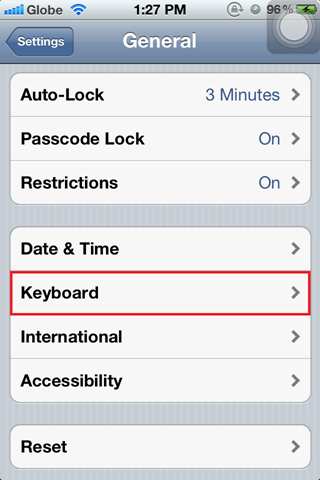
Emoji could be considered as emoticons 2.0 in the earlier days of iOS5 you had to purchase an app to enable it on your device. AAPL has since baked it into their iOS thus putting Emoji makers out of business and giving you iOS users free Emoji. Yay Apple? Anyway here we go! Settings > General > (scroll to Keyboard ) Add New Keyboard Scroll and select Emoji (you may also add other languages you might need/use) Now when you have your keyboard up you will notice a globe on the left of the spacebar (left of the text to speech mic if you’re on the 4S). Press and hold, and your presented with your selected keyboards (single press the globe cycles thru your keyboards). Now when you have Emoji selected you have pages and pages of icons! Here I am using it customize folder names and gesture names Curious what that translucent dot on my screen is? Read my AssistiveTouch Tip NB: EMOJI will show up on devices that support it (so these might not show up on a text you sent t...
Tips & Tricks // AssistiveTouch: Stop Poking Your Home Button

Image
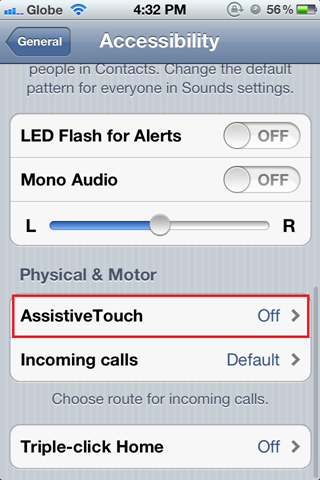
I came about this neat trick from my cuz. He uses AssistiveTouch because he doesn’t want to wear down his home button. I’ve been trying it out and it takes a bit of re-training to not use your physical home button but hey it’s a neat trick that people may find useful. So here we go: On your iOS device… Settings > General > Accessibilty > (scroll down to Physical & Motor ) > AssistiveTouch (toggle ON ) You will notice a new translucent floating white dot on your screen (you can move this around and it does try to get out of the way when the keyboard pops up) When you hit the dot you will be presented with the AssistiveTouch menu: Home : The virtual or on-screen home button works (single tap is home, double tap brings up task switcher/manager, and hold will bring up Siri) the same as the physical one. Device : Includes some nifty shortcuts (so yes you can even stop using your physical, volume and vibrate switches, and power button if you want to turn off th...

Switch Caller ID on FaceTime to protect your mobile number

Image
This trick is very similar to the iMessage trick I posted here 1. Settings > General > FaceTime > Toggle ON 2. Click Use your Apple ID for FaceTime 3. Plug-in your AAPL ID and password and click next 4. Click Add Another Email Address 5. Input your @me.com address and it should verify pretty fast, now scroll down to Caller ID. 6. Now select your @me.com address and just go back or exit using the home button. 7. Now you can receive FaceTime calls via 3 locations your mobile, your AAPL ID, and your @me.com address. You may remove your AAPL ID if that suites you. 8. Again. This is for placing FaceTime calls to new contacts (who may not have your mobile number), old contacts who have your mobile number or AAPL ID can and will be able to call you. 9. You can add more email addresses and use these for FaceTime caller ID. The logic behind this is: it is easier to filter emails vs changing your mobile number just in case you inadvertently contact someone who is nosy or always calli...

Switch Caller ID on iMessage to protect your mobile number (updated)

Image
iOS5 is ( coming soon! I am using beta2) out, one of the most anticipated features has got to be AAPL's take on BlackBerry Messenger on RIMM, No suprise they are calling iMessage. It will work with an Apple ID and mobile number. My Apple ID is my main email address and I want to share my mobile only to people I actually want to receive calls from. So the solution is get a FREE @me.com email address and link that for use w/ iMessage. 1. Go to Settings > iCloud (there should be a link to get it in there) 2. Now go to https://appleid.apple.com / and verify the @me.com you got from step 1. 3. Go to Settings > iMessage Click Receive At 4. Use your Apple ID for iMessage 5. Now click your Apple ID and remove it or change the Caller ID setting. 6. Now you can give out the @me.com address to get iMessages and keep your Apple ID hidden and share your mobile to people you choose. 7. Note your contacts can still send you iMessages if they know your number. This tip is for people...

ATTN: folks who are borrowing my Apple ID & password.

to everyone using my apple ID to borrow apps/games. I will be changing my pw and will not be giving it out anymore. sorry :'( Since iOS5 release is imminent (Fall 2011) and it has iCloud features for syncing PIM etc I would like to prevent contamination of PIM data and to maximize my use of the feature set of the iPhone. Consider getting a FREE iCloud account and your own Apple ID. This way you not only get the benefits of iOS but also get to support devs as well. 

Love the stock & weather widget on #iOS5 notifications banner

Image
I don't gamble on stocks but I like keeping posted on how tech companies are performing. i listen to a lot of tech podcasts and now I've added some tech stocks (mostly technology & phone companies) to Stocks app, and view them on the stock widget.  See the full gallery on Posterous The notifications banner was borrowed from Android but Apple has definitely improved it. iOS before version 5 does NOT have glanceable information the new notifications banner (although it takes one swipe to view it) and the lockscreen notifications help out a bit. I'm sure users will love it when iOS5 goes live in the Fall of 2011 (no solid date yet)