Posts

Showing posts with the label Tips/Tricks - iPhone

Tips & Tricks / Emergency SOS in iOS11

Image
Coming to iOS11 is a neat feature called Emergency SOS. It is found in its own sub-menu under Settings. Basically, this feature lets you quickly call Emergency Services or your Emergency Contacts. You invoke it by pressing the sleep/wake (power button) rapidly 5x. Don't forget to fill in your Medical ID & Emergency Contact/s (in Health app) so those first responders (police, fire, medics, etc) have some basic information to work with. As an added bonus, invoking the Emergency SOS screen also disables Touch ID temporarily and the device will remain locked until you input your password. Useful if you are confronted by a bad guy (bad cops?). Make sure you have a strong password (an alphanumeric password is better than a simple 4 digit pin), set your phone to lock immediately, and Erase data after 10 failed password attempts as well.

Tips & Tricks / Use Apple Touch Icons for your Blog or Website

Image
If you save bookmarks to the Home screen on Mobile Safari you may want to try this out on your own blog. Here is how to use Apple Touch Icons for your Blog or Website. These instructions are for blogger / blogspot which I use for both my personal blog and my podcast . You will need the following: An icon or image you want to represent your site. A simple image editor to resize the image.  Dropbox or somewhere to host the image files. A bit of HTML coding. You need a total of five images to handle all the resolutions on iOS. I used preview on OSX to duplicate and resize my png file. I placed it in a folder inside my Dropbox Public folder Now for the HTML CODE: Here is the basic code you will need to put this after HEAD  on your blog's html then replace the image source with the public link generated by dropbox . portions of the code snipped for privacy. Go to Blogger Template then edit HTML paste it right after head (see photo) and save ...

Add Degrees Symbol on iOS

Image

expand your vocab on iOS

Image

Tips & Tricks // Switch Your iTunes Account to the US Store (UPDATE)

Image
Tired of getting this? Here is how you can switch your iTunes Store Account to the US Store to get access to apps, music, movies, tv shows, books and other content that are not available in the Philippines iTunes store. Open iTunes on your PC or Mac. 1. Select iTunes Store and log-on, click your Apple ID and select view account 2. Click change country or region 3. Select United States 4. Agree to terms 5. Input a US Address and Telephone Number. LAX Airport works. 6. Done! You don’t have a US issued credit card, so how do you pay for stuff? For that you may purchase iTunes Gift cards (be sure they are for the US store) get em from PCGAMESUPPLY or DataBlitz. That’s it. The 1st thing to download in the US iTunes store: Google Maps , the 2nd is Scribblenauts Remix . HTH. Update: 10-Jan-2014 I have been having issues with PCGAMESUPPLY my orders via CC or PayPal were being automatically cancelled by their system, so I decided to look for another online shop to get iTu...

Find My Apple Device

Image
Find My iPhone (or iPod or iPad or Mac) is baked into iOS / OSX. It’s a great way to locate your device if you’ve misplaced it or if it get’s stolen. In this post I will show you how to turn it ON. Settings > Privacy Location Services Make sure Location Services is ON. You can turn off location services access per app but make sure Location Services itself is ON Scroll to the very bottom of the list and make sure Find my iPhone is ON as well Go back to Settings this time select iCloud   Scroll to Find My iPhone and make sure it’s turned ON In iOS 7, Find My iPhone is beefed up and hopefully makes it harder for thieves to erase and sell your device. Find my iPhone works via Location Services (GPS) for the location and Internet (Cellular data or WiFi) for the commands sent to the device it’d be a good idea to have both on. You CANNOT locate your iPhone if Location Services are OFF. With the Find My iPhone App or using iCloud.com (on a desktop browser) You can loc...

How to Turn off iPhone without the Power Button

Image
Turn off your iPhone without the Power Button. You need to have Assistive Touch ON to be able to do this. Settings - General - Accessibility - Assistive Touch - ON

How to Export Outlook 2013 Contacts into iCloud

Image

Tips & Tricks // Enable Google Now for iOS Outside the USA

Image
Want to try Google Now for iOS but you are not in the US? Here is how... Step 1: Download the Google Search App and log-in with your credentials. Exit Step 2: Go to Settings > General > International > Region Format > Change it to United States. Step 3: Open Google Search App and turn-on Google Now. Step 4: This is optional. Once Google Now is active you can switch your region format to your native country. Keep in mind not all cards will be available.

Tips & Tricks // Securing your iOS Device

Image
In the age of smartphones we have more and more data on our devices, with this in mind it is best to equip yourself with the knowledge on how to secure your device. Here are a couple of tips to help you. On your PC/Mac go to https://appleid.apple.com Apple ID is central to your device security a strong password is ESSENTIAL. Something alphanumeric with capitalization. Do not make this common dictionary words. I also suggest changing passwords every 6 months. Manage your rescue email and challenge questions. Don’t give these out, keep them safe. On your iOS device. 1. Settings > General > Passcode Lock - Enable passcode lock, this is the first deterrent to unwanted access to your device and the data you have on your phone.  2. Settings > iCloud - Enable iCloud’s Find my iPhone, (or other iDevice), with iCloud.com you can find your device, make it emit an audible sound, go to “lost mode” and worse comes to worst delete it remotely. NB be sure to have data and locati...

How To Export iCloud Contacts to Google Contacts

Image

How To Increase Font Size on iPhone

Image

How To Turn On Emoji

Image

Make Ringtones for iOS Using iTunes

Image

Add Lyrics To Music Using iTunes

Image

Alternatives to Apple Maps

Image
I’ve been bemoaning the total crap that has become of Maps on iOS6 ever since the first beta. As we wait for Apple to fix their maps let’s explore some alternatives… all these are FREE but require an internet connection. Don’t complain, a smartphone isn’t smart without a data plan. 1. WAZE – thanks to @byronini for this tip. It’s free, has turn-by-turn voice navigation, traffic, and a lot more features. Download this now. 2. Google Maps Web App. Go to maps.google.com on Mobile Safari and add to Home Screen for quick access. A far cry from the neutered Google Maps pre-iOS6 but still useful if only for the POI search. NB: Google is rumored to be working on a native Google Maps application for iOS (ala YouTube ) 3. Nokia Maps Web App – remember Nokia? Yeah those guys actually saw the writing on the mobile wall and have been steadily improving their location stuff over the years. Adding the web app won’t hurt. Their web-app also offers saving sections of maps. maps.nokia.com on Mo...

Sync iCloud Contacts to Android Device Using CardDAV

Image
This short tutorial shows how to sync iCloud contacts to your Android device. you will need an app to do this. It's called CardDAV-Sync free beta https://play.google.com/store/apps/details?id=org.dmfs.carddav.sync I chose to go 1 way sync with my iPhone being the primary device.

Childproofing your iPhone, iPad, or iPod Touch

Image
Kids are awesome and they do love those iOS devices. Here is how to child-proof that iOS device before you hand it over to your kid or nieces and nephews. A. Device itself. These are no brainers, usually kids (or even adults) are not as gentle on devices as you would want to be. Screen protector Invest in a case (plus points if it has a hand-strap you can have the kid wear) or is really tough ala otterbox or even better LifeProof Backup your device regularly – you should be doing this even if you don’t lend your device to a child. B. The OS or operating system Keep passwords secure, may it be the device password, Apple ID password or your restrictions password. Enable Restrictions – This is a powerful feature available on ALL iOS devices that is seldom used by most people.  Restrictions… Settings > General > Restrictions > At first run you will be asked to enter a restrictions password. Choose a password. Make sure you keep this in a safe place away from kids. Ther...

Export Outlook Contacts to iCloud (video tutorial)

Image
I suggest watching in 720p and full-screen to really see what's going on...

Tips & Tricks // Emoji is now built-in to iOS5, here’s how to enable it!

Image
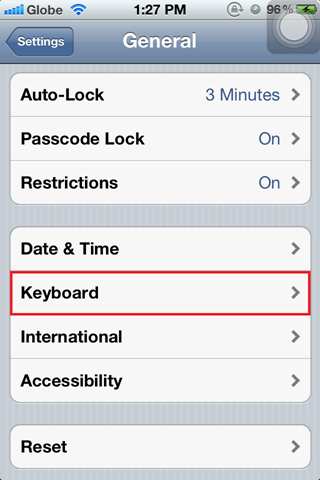
Emoji could be considered as emoticons 2.0 in the earlier days of iOS5 you had to purchase an app to enable it on your device. AAPL has since baked it into their iOS thus putting Emoji makers out of business and giving you iOS users free Emoji. Yay Apple? Anyway here we go! Settings > General > (scroll to Keyboard ) Add New Keyboard Scroll and select Emoji (you may also add other languages you might need/use) Now when you have your keyboard up you will notice a globe on the left of the spacebar (left of the text to speech mic if you’re on the 4S). Press and hold, and your presented with your selected keyboards (single press the globe cycles thru your keyboards). Now when you have Emoji selected you have pages and pages of icons! Here I am using it customize folder names and gesture names Curious what that translucent dot on my screen is? Read my AssistiveTouch Tip NB: EMOJI will show up on devices that support it (so these might not show up on a text you sent t...